Wireshark Project
Wireshark is a free tool that shows what travels on your network. This page has two video lessons, eight practice labs and two quizzes to help you learn it step by step.
What is Wireshark?
Wireshark is a network protocol analyser. It captures the packets moving through your network card and shows them in a form you can read. Every website visit, login and file transfer is made of packets, so you can think of Wireshark as a microscope that lets you open each one.
You can watch live traffic or open a saved capture file (pcap) and study it later. Wireshark is free, open source and runs on all major operating systems. To practise what you read here, start with Lab 1 and Lab 2, then try the six live SOC labs.
Wireshark Complete Course (free)
1. Wireshark introduction
2. Wireshark practice labs
Watch the introduction first, then follow the lab video with the PDFs open next to it.
Wireshark Practice Labs (Download)
Labs 1 and 2 are PDFs with a short background, the task and a step by step solution. Do the task first, then check your work with the steps.
Lab 1: Packet Capture
Capture your own Wi-Fi traffic while opening a website. Find your IP, the DNS server, the website IP, the Server Name, the server port and the TLS version.
Download Lab 1 PDFLab 2: PCAP Analysis
Open a saved capture of microsoft.com and answer the same kind of questions offline. Download the lab PDF and the PCAP file (ZIP) below.
Download Lab 2 PDF Download PCAP (ZIP)Unzip the PCAP file before you open it in Wireshark. New to the tool? See how to install Wireshark first.
Wireshark SOC Labs (Live)
Labs 3 to 8 run live in your browser, so you need no install and no setup. They are made for SOC, cybersecurity professionals and students. Each lab gives you a short case to investigate in a Wireshark style window.
Lab 3: Identify the Attacker's IP
Investigate the traffic and identify the attacker's IP address.
Start Lab 3Lab 4: Follow TCP Stream 1
Use Follow TCP Stream to rebuild a conversation and read what was sent.
Start Lab 4Lab 6: HTTP Plain Text Credentials
Find usernames and passwords sent in clear text over HTTP.
Start Lab 6Lab 7: Catch the Brute Force Attacker
Spot the repeated login attempts and catch the attacker.
Start Lab 7Wireshark Quizzes
After the labs, test what you learned. The first quiz covers the basics and the second quiz is for deeper questions.
Wireshark Advanced Quiz
Harder questions on analysis tools and traffic patterns.
Start the advanced quizUses of Wireshark
Wireshark is one free tool for many everyday jobs: network troubleshooting, security analysis, learning protocols, incident investigation and performance checks. For example, it can show slow responses, dropped packets, retransmissions and which devices use the most bandwidth.
Who uses Wireshark?
Network engineers use it to find slow links and misconfigured devices. SOC analysts use it to investigate alerts and check what a suspicious device was doing. Ethical hackers use it during authorised tests and lab exercises. System admins, developers and students use it too. Lab 1 is a good first exercise for any of them.
Download and Setup
Go to wireshark.org and open the Download page. Pick your system (Windows, macOS or Linux) and run the installer. The default options are fine. On Windows, allow Npcap when asked, because it is the driver that captures packets. Kali Linux already has Wireshark installed.
How to Capture Traffic
Wireshark listens on your own PC, between your computer and the router. Select your interface (Wi-Fi or Ethernet), click the blue shark fin to start, open a website or run ping, then click the red square to stop and analyse. You will do exactly this in Lab 1.
Wireshark Interface
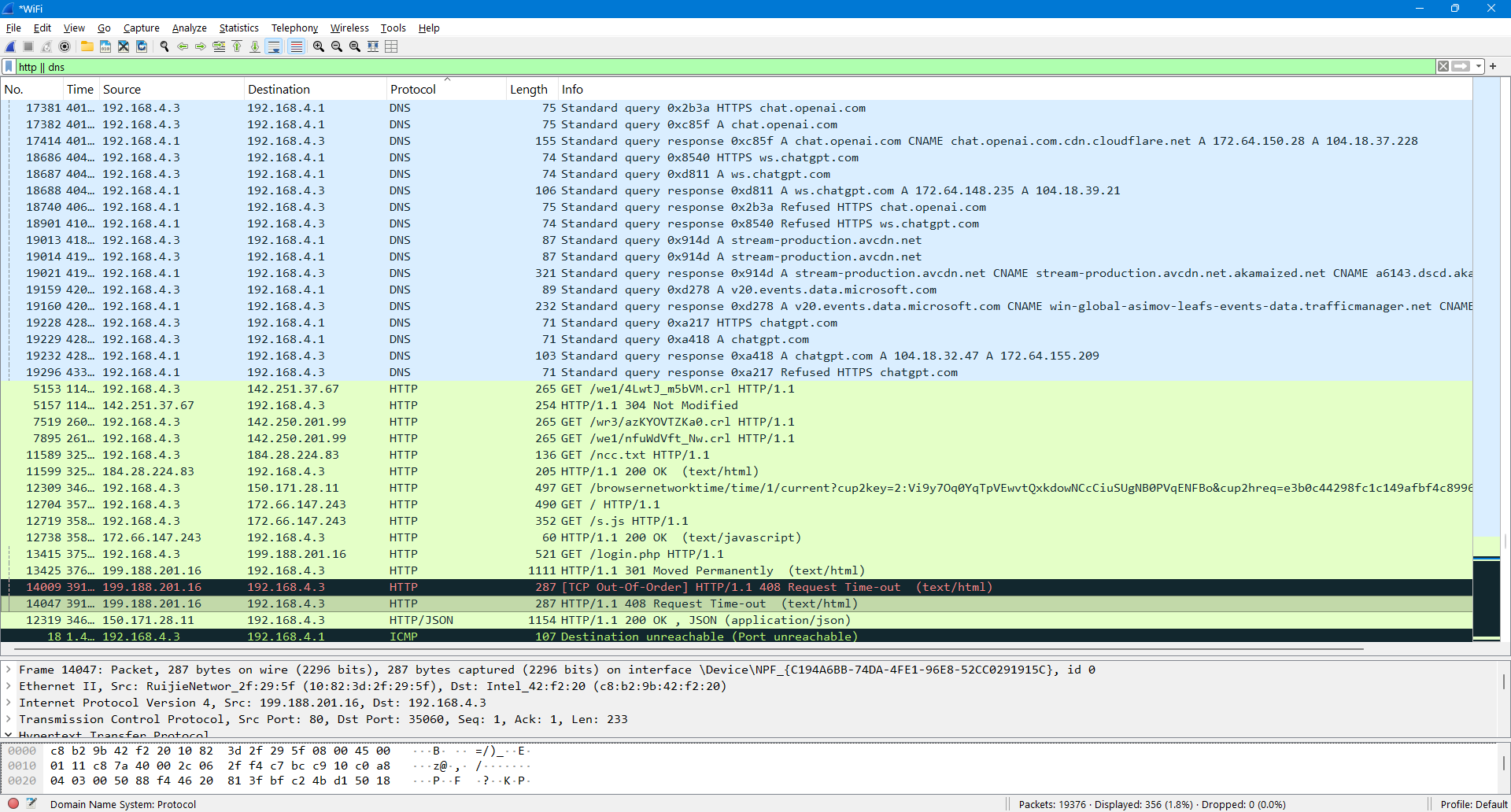
The main window has three panes. The Packet List shows one line per packet with time, source, destination and protocol. Packet Details shows the layers of the packet you selected. Packet Bytes shows the raw data in hex and text. Click a packet in the list, expand each layer in the details and check the raw data below.
Wireshark Filters
There are two kinds of filters. A capture filter is applied before the capture starts and only matching packets are saved. A display filter is applied after capture and only hides packets, nothing is deleted. You can change a display filter at any time. Example capture filter: host 192.168.1.5. Example display filter: ip.addr == 192.168.1.5.
Common display filters
| Filter | What it shows |
|---|---|
| ip.addr == 192.168.4.3 | Traffic to or from this IP |
| tcp.port == 80 | TCP traffic on port 80 |
| http | HTTP packets only |
| dns | DNS packets only |
| icmp | Ping and error messages |
| tcp.flags.syn == 1 | Packets with the SYN flag set |
The labs use filters like dns and tls.handshake.type == 1. Try them in Lab 1 and Lab 2.
Common Protocols to Know
You will see five protocols all the time. TCP gives reliable delivery using a 3-way handshake. DNS turns names into IP addresses. HTTP carries web traffic in clear text. ARP finds the MAC address for an IP. ICMP carries ping and error messages. Type the protocol name in the display filter to see only those packets.
Useful Analysis Tools
Four tools are used often in the labs. Follow TCP Stream (Analyze > Follow > TCP Stream) rebuilds a whole conversation in readable text. Export Objects (File > Export Objects > HTTP) saves files sent over HTTP. Expert Information (Analyze > Expert Information) lists warnings and problems. I/O Graphs (Statistics > I/O Graphs) shows traffic over time and helps spot spikes.
Wireshark in Cybersecurity
In security work, Wireshark helps you check three things in a capture. Scans: one IP sends SYN packets to many ports in a short time. Clear text data: HTTP, FTP and Telnet show usernames and passwords in plain view. Suspicious traffic: unknown destinations, regular beacons and very long DNS names.
Next Steps
Watch the two videos, finish Lab 1 and Lab 2, try the six live SOC labs, then take the Wireshark quiz and the advanced quiz.